![[Contents]](contents.jpg)
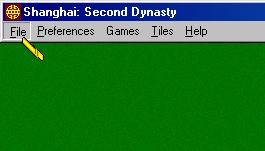
When playing Shanghai: Second Dynasty with your monitor set to 640x480 pixels
(the recommended setting since that way the game fills the screen), you can cause
the menus to be displayed by moving the cursor to the top of the screen.
About...
This option displays the credits. A lot of fine folks worked really hard to make
this game; they're listed here.
Wall of Fame...
The Wall of Fame keeps track of the top ten scores for games of Timed Shanghai,
2-Player, Arcade, Dynasty, Pandamonium, and Mah-Jongg.
New Game
Select this option to start a new game of the currently selected game
(re-shuffling the Shanghai tiles, or re-dealing the Mah-Jongg tiles).
Back One Move
Choose this option to replace the last pair of tiles you removed. You can keep
replacing tiles all the way to the start of the game if your heart so desires.
This option is grayed out until you make at least one move, of course. Back One
Move is not available in all game modes (it is not available in any multi-player
game, Arcade, or Mah-Jongg).
Show All Moves...
If you need help finding a match, select this option and the computer will
highlight all of the available matches for you. This option is not available in
all game modes (it is not available in any multi-player game, Arcade, or
Mah-Jongg).
Shuffle Tiles
Select this option to shuffle all the tiles remaining on the screen; this will
give you a second chance at clearing the screen-but not a very clear conscience.
This option is not available in all game modes (it is not available in any
multi-player game, Arcade, or Mah-Jongg).
Load A Game...
This option lets you load a previously saved game. Just select Load Game... and
locate the game you want to resume. Click OK to load the game. This option is not
available when playing against other players online.
Save A Game...
You can always save a game in the middle of gameplay, and continue it later. Just
name your game and file it in the folder of your choice. This option is not
available when playing against other players online.
Pause Game
Select this option to pause any timed game, like Two-Player or a Arcade game.
This option is not available in all game modes (it is not available in any
multi-player game online, for example).
Quit Game
Select this option to quit Shanghai: Second Dynasty.
Timer
This option is available in Classic Shanghai only (essentially, it is another way
to play Classic Shanghai). Selecting it allows you to start a timer which tells
you how long it took you to clear a layout. Your ten best times are saved on the
Wall Of Fame.
Sounds And Music...
Under the Preferences menu, when you select Sounds And Music, you get a
multi-purpose dialog box:

Music
This section of the Sounds And Music dialog box lets you control when you hear
music, which music you will hear, and how loud it will be. Fiddle with the
controls and all will be clear.
The music for Shanghai: Second Dynasty is themed in homage to the Eight Immortals, Chinese spirits or "patron saints." There are nine tunes that can be selected during the game.
1. Patron of Happiness (Chang Kuo-lao): Chang Kuo-lao is said to have lived in the seventh or early eighth century. He is most frequently portrayed as a ruler carrying a bamboo tube-drum with iron sticks, standing next to a mule. He is the emblem of old age.
2. Patron of Literature (Lu Tung-pin): Born circa 755 AD and died in 805 AD, Lu Tung-pin is most often shown with a fly-whisker, dressed as a scholar and honored as such. He also had a magic sword with which he performed unusual feats, such as using the sword to cut a person's hair.
3. Patron of Flowers (Lan Ts'ai-ho): Lan Ts'ai-ho is known as the strolling singer and is portrayed as either a woman or a young boy carrying a flower-basket.
4. Patron of Actors (Ts'ao Kuo-ch'iu): Said to have been connected with the Sung Imperial family, Ts'ao Kuo-ch'iu is generally shown with castanets or a jade tablet of admission to court.
5. Patron of Music (Han Hsiang-tzu): Purportedly the nephew of the Tang Dynasty statesman and scholar Han Yu, Han Hsiang-tzu is often shown with a flute.
6. Patron of Home (Ho Hsien-ku): A woman said to have lived in the late seventh century, Ho Hsien-ku is most frequently shown with a lotus blossom or flower basket. She's occasionally portrayed carrying a peach and a sheng reed-organ.
7. Patron of Life (Chuan Chung-li): The Patron of Life is usually illustrated holding a fan. He represents the military man.
8. Patron of Medicine (Li T'ieh-kuai): "Iron-crutch Li" always carries a crutch and a gourd. Li T'ieh-kuai is the emblem of the sick.
9. The Eight Immortals: Track nine stands as an epilogue to the other tracks.
Sounds
This section lets you control whether you will hear game sounds or tile animation
sound effects or not, and how loud they will be. The volume level you select for
sound effects also controls voices. If you elect to have no sounds, you will also
not hear any voices.
Voices
This section lets you control whether you will hear voices or not. When we say
During Regular, that is just meant to clarify whether you will hear voices during
non-Kids games or not. The volume control for the voices is in the Sounds section
just above. If you disable sounds, voices will also be turned off.
Tile Animation
Turn your tile animations ON or OFF during gameplay. (You may prefer to turn tile
animations off during time-limit games, but while a tile animation is running,
you can continue playing, clicking on yet more tiles.)
Background Picture
A background image is normally displayed in the classic Shanghai game; you can
choose to leave the background image on while you play, or turn it off. When
Background Picture is off, you get a solid-color background (the color differs
for each tile set). You can also have a background picture in the Mah-Jongg
games.
Cursor Effects
Turn Cursor Effects ON and your cursor will change when it's over a tile to let
you know that that tile is free to be removed or not; turn this option OFF and
you're on your own! This option only applies to Shanghai (tile-matching) games,
not to Mah-Jongg.
Guaranteed Winnable
This option applies only to the Shanghai games (not applicable in Mah-Jongg).
When this option is checked, every time the computer builds a new arrangement of
tiles, the computer makes sure that there is at least one path to success. If you
prefer the challenge of a purely random arrangement of tiles (which may or may
not be winnable), you can turn this option OFF. "Guaranteed Winnable" does not
mean that you will win-it's only a guarantee that a win is possible.
Autopass
This option only applies to the Mah-Jongg game (it does not apply in any Shanghai
tile-matching game). Autopass allows the game to move quickly-when a discarded
tile is not usable by you, the game will not make you press the Pass button (the
next player will draw and play). If you want to study each discard, turn Autopass
Off; you will have to press Pass after each discard.
Highlight Free Tiles
This option applies only to Kids mode. When this option is selected, all free
(selectable) tiles are highlighted. For an increased challenge, turn this option
off.
Prompts
Turn this option OFF if you do not need any onscreen prompts telling you how to
play.
Tile Count
You can completely remove the info boxes (and achieve an uncluttered look) on the
screen by turning Prompts and Tile Count OFF.
Arabic Numerals
This option only applies to the Mah-Jongg tiles (no matter whether used in a
Shanghai game or a Mah-Jongg game). When this option is ON (checked), small
Arabic numerals (and Roman letters) are displayed on the Mah-Jongg tiles. If you
cannot read Chinese numbers, you should keep this option ON when playing
Mah-Jongg.
Button Labels
This option only applies to the Mah-Jongg game. You can choose to have the
Mah-Jongg game interface buttons labeled with the Chinese terms (Pong, Kong,
Chow), the Japanese terms (Pon, Kan, Chi), or the English terms (Triple, Quad,
Sequence).

Voice Preference (Mah-Jongg Games)
When you are playing Mah-Jongg, you have a Voice preference under the Preferences
menu. There are three voice choices (and yes, they're choice voices too).
1. American voices -- Because more than 90% of the players of American Mah-Jongg are female, these voices are all female. American players announce the names of the tiles they discard, and American players do not announce the number of tiles in the exposure they're making when they claim a discard. (American players don't call out, "Pung!" -- they say "I want that!") So if you want to hear voices announcing the names of discards, select the American voices.
2. Japanese voices -- If you play Japanese Mah-Jongg, these voices will definitely make you feel like you're really in Japan! Everybody speaks Japanese if you select this option. The Japanese players do not announce the names of tiles they discard.
3. International voices -- These are the voices we used in Shanghai: Dynasty (the precursor to Shanghai: Second Dynasty). Two players (one male and one female) speak American English, one female player speaks Cantonese, and one male player speaks Japanese. These players do not announce the names of tiles they discard. All these players occasionally use English words.
Reset to Default
Selecting this option resets all the Preferences to the "factory" settings.
New Game
Select this option to start a new game of the currently selected game option.
Classic Shanghai
Match tiles in the classic tradition of Shanghai. Click on this option to start a
new one-player Classic Shanghai game.
Windstorm
Match tiles just like Shanghai, until the prevailing wind changes. Available
tiles then become those that can slide up or down, not right or left. If there's
a windstorm, tiles can be matched that can slide up, down, right, or left.
Kids
Click here to play Classic Shanghai with smaller layouts, a helpful voice, and
other kid-friendly features.
Power Dragon's Eye
Dragon's Eye is back, now with Power tiles. Take the role of either the Dragon
Slayer or the Dragon Master in ancient war to bring a dragon to life. In Power
Dragon's Eye, Power tiles come into play whenever the Dragon Slayer matched two
Jokers. You never know to whose advantage the Power tile will be, maybe allowing
the Dragon to roar into existence!
Arcade Mode
Click on this option to start a new Arcade game. It's kind of like settling down
to a nice thick novel - an Arcade game consists of a series of 25 solitaire games
of Classic Shanghai, played against the clock. It's the ultimate Classic Shanghai
challenge!
2-Player
Select this option to play a two-player game of Classic Shanghai against a friend
(no A.I. opponents available), taking turns sharing one mouse.
Dynasty
Click here to start a game against up to four A.I. opponents in which each player
races to be the first to clear his/her/its layout. Power Tiles add to the
excitement.
Pandamonium
Play against up to four A.I. opponents simultaneously on one layout. You'll see
why we call it "Pandamonium."
Mah-Jongg
Play against three A.I. opponents in the classic Chinese game. Choose American,
Japanese, Western, or Chinese rules.
Multi-Player Connect...
Ready to play Dragon's Eye, Dynasty, Pandamonium, or Mah-Jongg against real people? Click here
and get ready for some serious online gaming.
For a change in scenery, or an enhanced or reduced challenge, you can play on one of nineteen themed tile sets (Shanghai games only; Mah-Jongg can only be played using the Mah-Jongg tiles, of course) - just pull down the Tiles menu to choose the tile set of your choice.
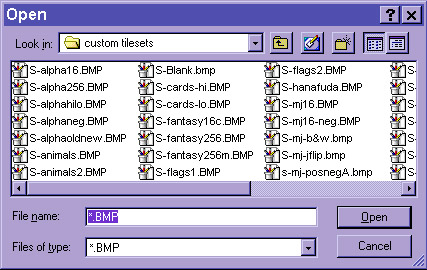
Custom Tiles...
If you have created or acquired any custom tile sets, click here to open a window
to find and access them. A number of custom sets are included with your game.
Check them out! See Importing Custom Tile Sets in the in-game manual.
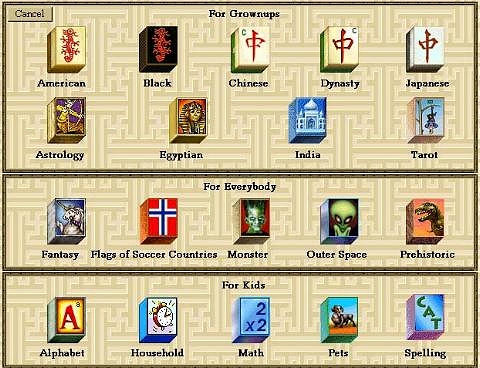
Guide To Tile Sets
This option will allow you to get a quick preview of the many tile sets that come
with Shanghai: Second Dynasty. A screen with one tile from each of the tile sets
will be displayed. Just click on that tile to change your current tiles to that
tile set. Click Cancel to exit the screen.
Note: To identify a particular tile while playing, Right-Click (Macintosh users: Ctrl-Click) it. You instantly get information on a tile when you right-click a tile (you'll see the name of the tile and its status - what you can do with it). This feature only works with the animated tile sets provided with the game (it does not work with any custom tile sets).
Layouts Menu
You can choose from many increasingly difficult Classic Shanghai layouts (which
are also playable in Windstorm, Pandamonium and 2-Player), seventeen layouts for
Dynasty, or eleven layouts for Kids. Select the game first, and then the layout
you'd like to play.
Create A Layout
Want to try your hand at creating your own layout? Click here and you can.
Discover what makes a layout easy or difficult. Detailed instructions can be
found in the in-game manual.
Kids Layout
Layouts of fewer than 72 tiles especially designed for kids' learning and fun.
Classic Layouts
Fifteen easy, fifteen normal, sixteen advanced, and fifteen master layouts of the
Shanghai game.
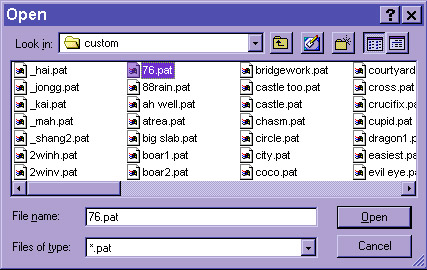
Custom Layouts...
If you have created or acquired any custom layouts, click here to open a window
to find and access them. A number of custom layouts are included with your game.
Check them out! Layout files have a .pat extension after the layout name.
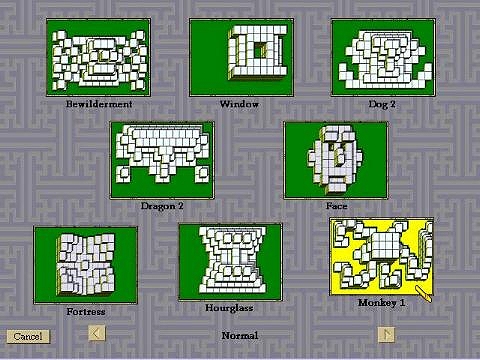
Guide To Layouts...
This option will allow you to get a quick preview of the regular layouts that
come with Shanghai: Second Dynasty. A screen will appear which shows the layouts
and ranks them by difficulty. Just click on a layout to start a new game with
that layout. Click the onscreen arrow buttons to view more layouts. Click Cancel
to exit the screen.
Manual (Rules)
Open the Manual by selecting it from the Help menu for a complete on-screen guide
to playing the Shanghai: Second Dynasty games.
Note: The Manual feature is also viewable through your Internet browser. Just open the game's folder, and double-click on the file "manual.htm," or open that file with your browser through any method that works for you. Then you can use your browser's Print function to print any chapter you desire.
Back One Move
This option is available only in Classic Shanghai and Kids' mode. Choose this
option (or press Ctrl-B or Backspace) to replace the last pair of tiles you
removed. You can keep replacing tiles all the way to the start of the game if
your heart so desires.
Show All Moves
Choose this option to show all of the available matches on the screen.
Shuffle Tiles
This option will shuffle the tiles remaining on the screen into a new
configuration. This is one way to continue a game where you are stuck.
Show What's Left
The computer will show you all of the tile matches that are left on the screen.
You will see how many matches you have left and how many of each tile. Select the
menu option again to resume playing.
Start Over
This option allows you to start the current layout over to try and avoid getting
stuck or achieve a higher score.
Find A Match
If you need help finding a match in Shanghai, select this option (or press
Control-M) and the computer will highlight a match for you.
Suggest A Move
(Mah-Jongg games only.) If you need help deciding what to do in Mah-Jongg, select
this option (or press Control-M) and the computer will suggest an action for you.
There's no guarantee that the computer's suggestion will give you an easy win,
however. . . (Note: this feature is only available when playing against A.I. opponents; it is not available when playing against real people over the Internet.)
Show All Moves
(Shanghai game only.) Select this option and the computer will show you every
possible pair you can remove at that specific point in the game.
Shuffle Tiles
Select this option to shuffle all the tiles remaining on the screen; this will
give you a second chance at clearing the screen-but not a very clear conscience.
Not applicable in the game of Mah-Jongg, naturally. This is only available in
Classic Shanghai and Kids' mode.
Start Over
(Shanghai game only.) If you don't feel like you're off to a good start (but want
to try the same tile arrangement again), select Start Over to restart your game
using the same exact arrangement of tiles.
Declare a Win
(Mah-Jongg games only.) So you are positive that you have a winning hand, but the
Win button won't light up. Click this menu option and find out what would happen
to you in this situation in real life.
View Current Card
(American Mah-Jongg game only.) If you have misplaced your printed AMJA card, or
if you are working from a custom card file and don't have a printed copy, you can
use this feature to rummage through the card file the computer is using. You can
select a hand or check the details of how the hand is composed or scored. Click
the Exit button when you are done and want to return to your game.
Show Closest Hands
(American Mah-Jongg game only.) Want the computer to suggest a hand from the
card? Select this option on the menu. Pay special attention to the upper right
corner to see how many different hands the computer suggests. If it says "1 out
of 3," use the Next Hand button to review the others. If it says "1 out of 1,"
then this is the only hand the computer suggests. Note of Caution: The computer's
suggestions are not necessarily the best ones for you. These are just suggestions
in case you need a kibitzer looking over your shoulder. You can ignore the
computer's suggestions and still stand a good chance of making a winning hand.
New Game - Ctrl-N
Rules & Strategy... - Ctrl-R
Back One Move - Ctrl-B or Backspace
Shuffle Tiles - Ctrl-F
Find A Match - Ctrl-M (Shanghai game)
Sugest A Move - Ctrl-M (Mah-Jongg game)
Load Game... - Ctrl-O
Save Game... - Ctrl-S
Pause Game - Ctrl-P
Quit Game - Ctrl-Q
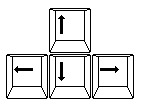
Change Camera View - Arrow Keys
Create a Layout - Ctrl-E
Insert Mode - + (Layout Editor)
Select Mode - - (Layout Editor)
Insert Boxes Mode - \ (Layout Editor)
Play This Layout - Ctrl-P (Layout Editor)
Cancel/Return to Game - Ctrl-C (Layout Editor)
Clear Layout - Ctrl-X (layout Editor)
Type a message - Spacebar (online games only)
Send a message - Enter (online games only)
Close message-entry window - Esc (online games only)
New Game - Command-N
Rules & Strategy... - Command-R
Back One Move - Command-B
Shuffle Tiles - Command-F
Find A Match - Command-M (Shanghai game)
Suggest A Move - Command-M (Mah-Jongg game)
Load Game... - Command-O
Save Game... - Command-S
Pause Game - Command-P
Quit Game - Command-Q
Change Camera View - Arrow Keys
Create a Layout - Command-E
Insert Mode - + (Layout Editor)
Select Mode - - (Layout Editor)
Insert Boxes Mode - \ (Layout Editor)
Play This Layout - Command-P (Layout Editor)
Cancel/Return to Game - Command-C (Layout Editor)
Clear Layout - Command-X (layout Editor)
